THE SPACE BETWEEN IDEA & POSSIBILITY

A still image. A new direction.

Choose your source image, then continue to the video creator.

CREATIVE STUDIOMADE FOR YOUR IDEAS
Start with your image

Use an image you own or have permission to use.

Explore the idea here. Choose the available generation options in the app.

Continue to video creator

This page previews the workflow. No image or video is generated here.

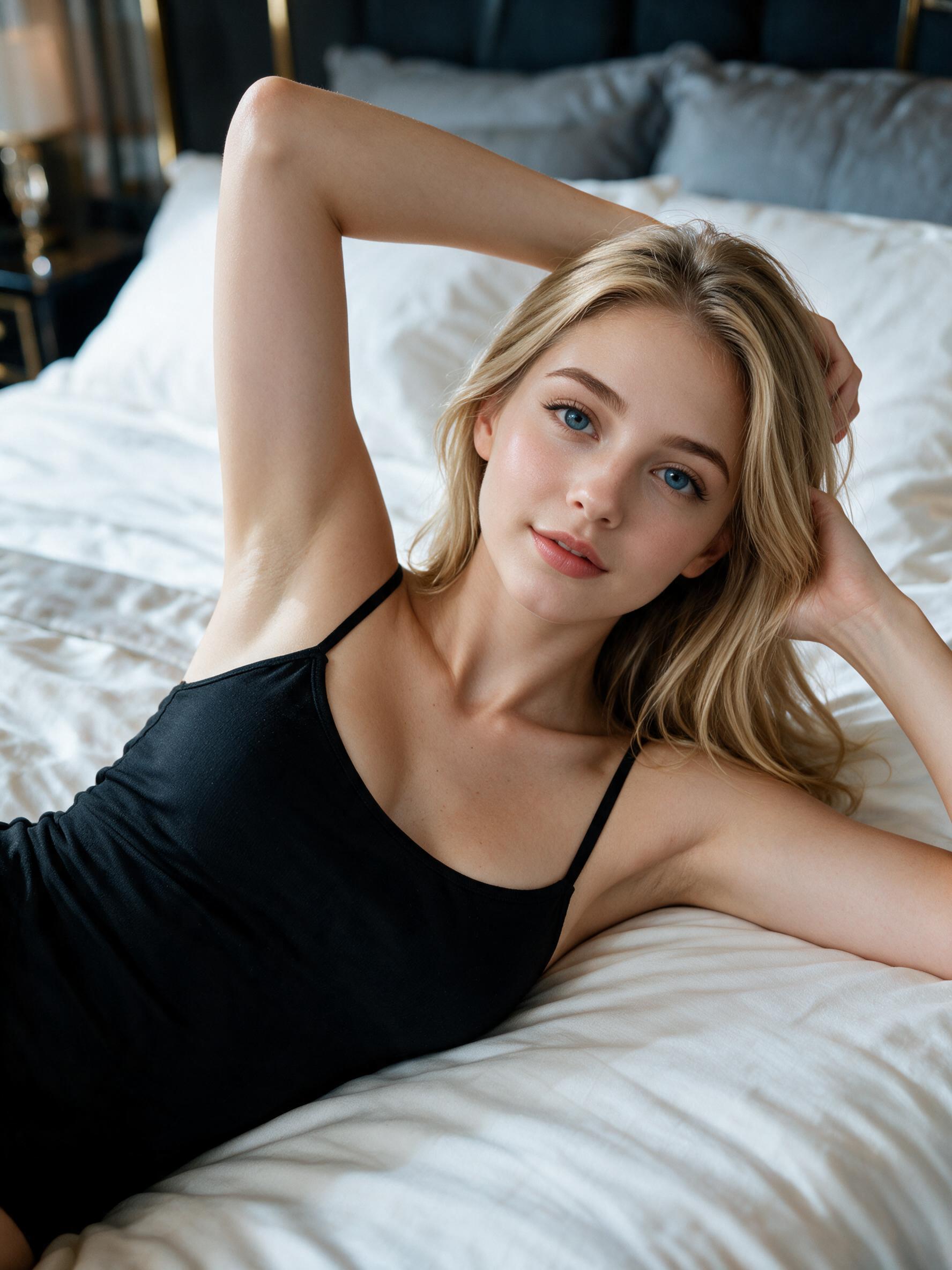
A LITTLE INSPIRATIONCharacter portrait
Susan — character portrait, not a generated result
THE START OF SOMETHING

An idea, made visual.

Explore the possibilities, then continue in the creator.

Character portrait
THE QUICK ANSWER

What is image to video AI?

A LITTLE CONTEXT

Image to video AI describes a process that uses a still image as the starting point for a moving clip. It differs from starting with text alone because the source already establishes visual content. This guide explains that distinction; the main app provides any available creation controls and output details.

Make the source image easy to understand

A clear subject and an understandable composition make it easier to describe the motion you have in mind. Think about what should remain recognizable and where movement would fit the scene. Use an image you have the right to use. Accepted file types, sizes, and source-selection methods depend on the workflow shown in the app.

Keep the motion idea focused

Think about whether your idea centers on the subject, the surroundings, or the viewpoint. A focused brief is easier to assess than several competing motions at once. These concepts explain the workflow rather than promising specific animation controls. Check the main app for available options, output information, and any access requirements before proceeding.
A SIMPLE PLACE TO START

From curious to connected.

A few small steps toward your next experience.

01

Choose a source idea

Identify a still image you have permission to use. Consider its subject, framing, and the kind of motion that would suit the scene.

02

Review the video workflow

Open DreamMates to see whether an image-to-video flow is available to you, along with its accepted inputs, options, and requirements.

03

Continue and review there

Use the actions shown in the main app to proceed and inspect any output. Playback and result handling take place in that product.

THERE’S MORE TO YOUR IMAGINATION

A whole world worth exploring.

Meet a new personality, follow a little curiosity, and make it your own.

Meet the characters
GOOD TO KNOW

A little clarity.
More possibility.

Questions about Image to Video AI?
Let’s start here.

How is image to video different from text to video?

Image-to-video begins with a still image that establishes the visual subject and composition. Text-to-video begins with a written description. The two approaches can have different input requirements and controls, so one does not imply support for the other.

What makes a useful source image?

Choose an image with a recognizable subject and a composition that suits your intended motion. Use content you are entitled to use, then check the tool requirements for accepted formats and any input restrictions.

What video length or resolution can I choose?

Those details depend on the current tool and access conditions. Read the output information in the DreamMates app before starting. This guide does not specify a duration, resolution, processing time, or guaranteed result.

Can I upload an image or watch a result here?

This page explains the workflow. Continue to the DreamMates main app to review any available source-image, creation, and playback actions. It does not accept uploads or provide a generated video player.